Phone To Session
Prerequisites
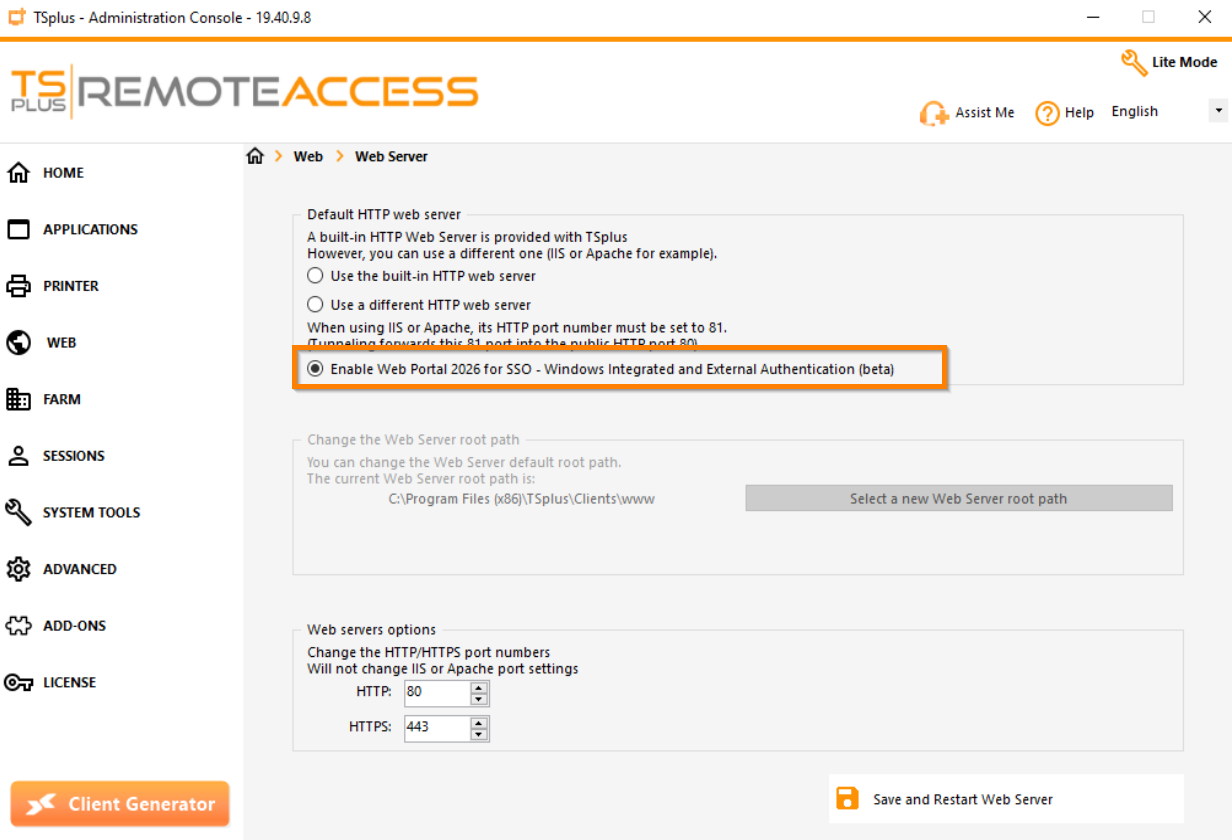
The remote access server must be accessible from the Internet, with a domain name and HTTPS protocol configured. This feature is available on the new WebPortal.
QR Code
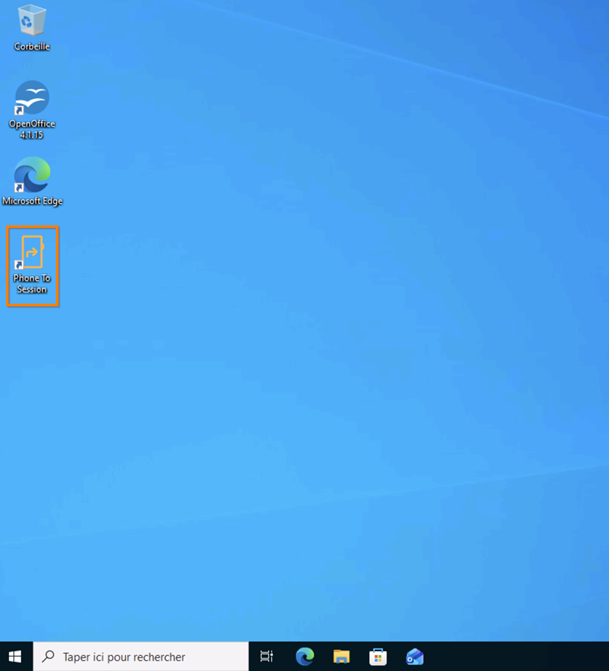
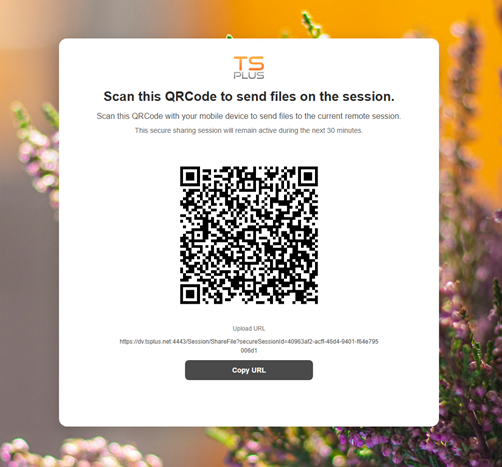
Do you want to transfer a file from your mobile phone to your RDP session? Click the “Phone To Session” shortcut on your desktop. A QR code will appear in your browser.
Share
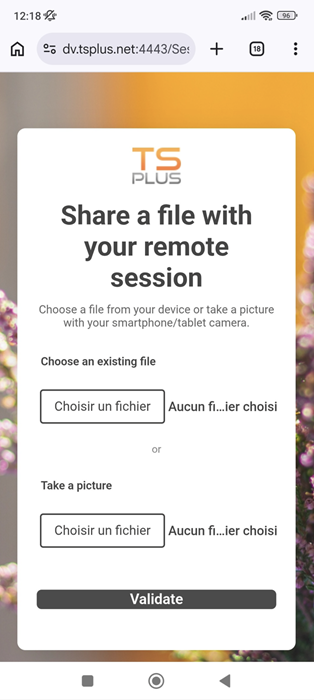
Scan it, then select a file from your phone or take a photo directly with your device. Text files, images, and spreadsheets are supported.
Once confirmed, you can retrieve your file on your session desktop.
Activation
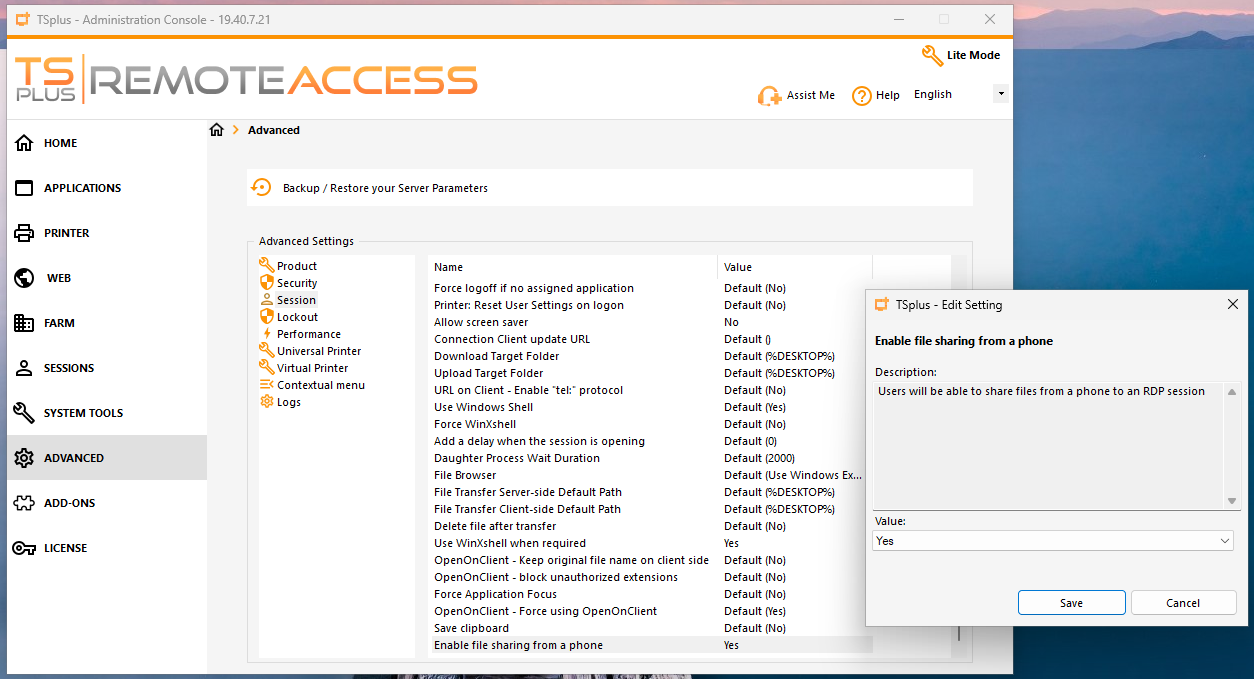
This feature is enabled by default. It can be disabled via the “Advanced” section of the AdminTool.
Click on “Session” and set the “Enable file sharing from a phone” option to “No”. The shortcut will disappear upon the next login.