Register to Save your Configuration
While registration is not mandatory to use Remote Support as an agent or to share your screen, we recommend you to register. Registering enables you to retrieve your configuration from different computers.
Log in to your account
Click on the Log in button at the top right corner:
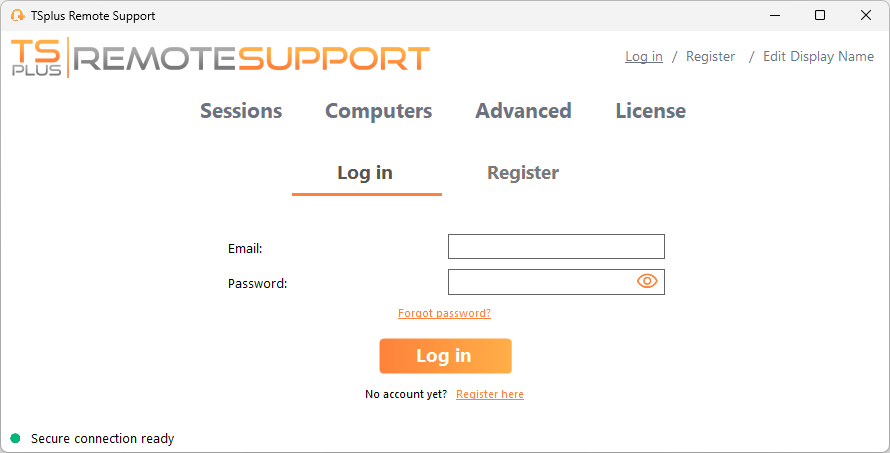
You can sign in using the standard email and password form, or authenticate with an external provider such as Google or Apple.
Standard Sign-In
Enter your email address and password, then click on the Log in button.
Retrieve your password
If you have forgotten your password, enter your email address and click on the Send reset password token link.
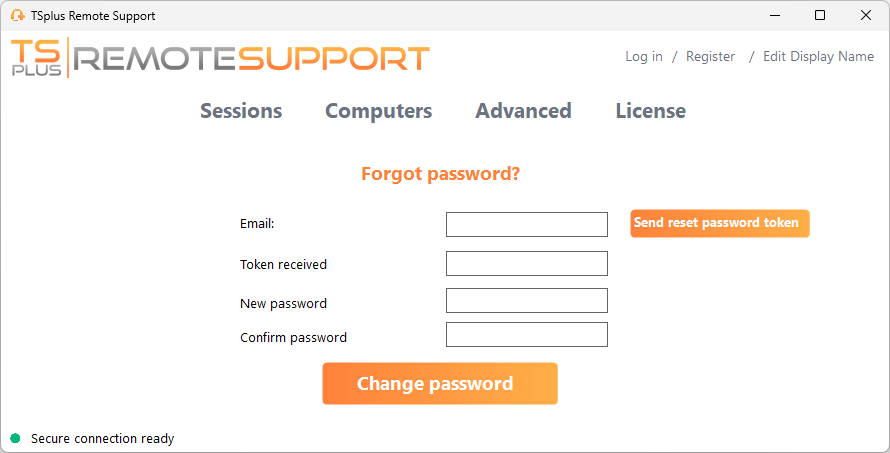
You will receive an email containing a token. Enter the received token and choose a new password. Enter your new password again to confirm.
External Authentication
You can use your existing account with Google, Apple, Microsoft, or GitHub to sign in to Remote Support.
If your account does not already exist in Remote Support, it will be created automatically.
Making an External Authentication Account Available for Standard Sign-In
An account created with External Authentication is not available for standard email and password sign-in by default.
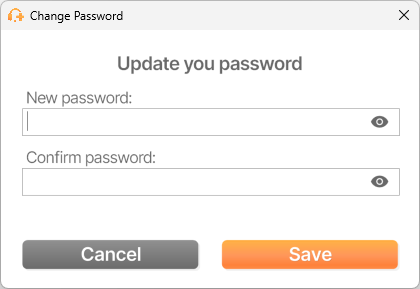
If you want to make it available for standard sign-in, simply set a password for the account in Remote Support.
To do this, click the account button in the top-right corner,
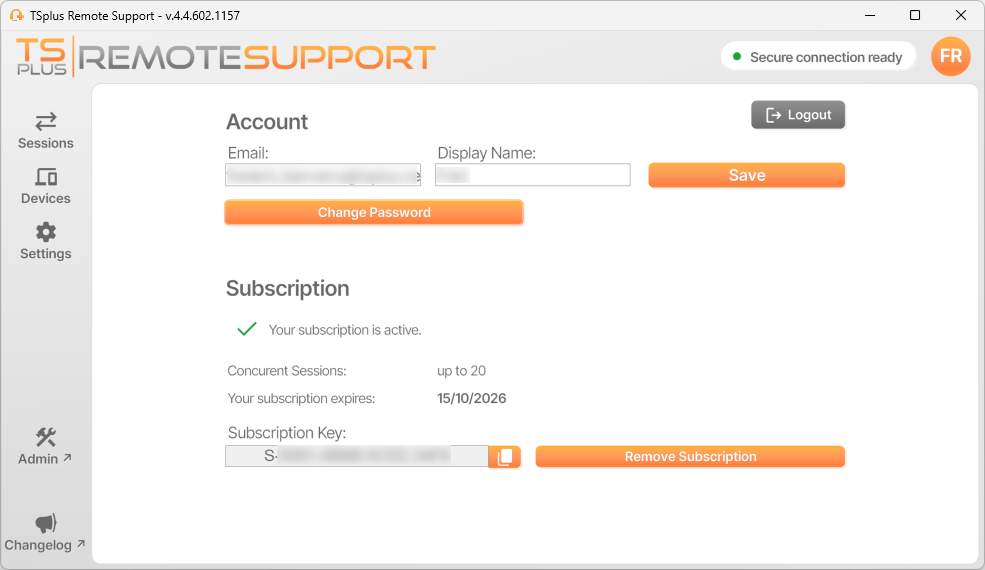
then select “Change password” and enter a password for the account.
Create an account
Click on the Log in button in the upper right corner to register and then the Register here button
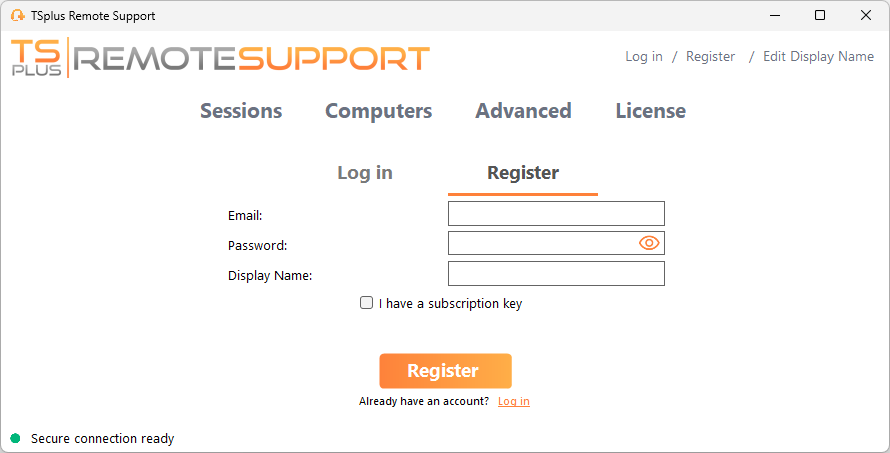
Fill in the registration form
- Enter your e-mail address
- Choose a secure password
- If you have a subscription key, check the I have a subscription key checkbox and enter it in the subscription key field to associate your account with your subscription
Or register with an external provider
Simply click on the button of your preferred provider (Google, Apple, Microsoft, or GitHub) to register and sign in with your existing account.